);
}
return (
);
}
```
When to use injected provider:
* User wants to use their existing extension wallet directly.
* No embedded wallet creation needed.
* Direct access to extension accounts and balances.
**Account change detection**: When using the `injected` provider, the SDK automatically detects when users switch accounts in their wallet extension and updates the connection state accordingly. Your app will receive updated account information through the `useAccounts()` and `usePhantom()` hooks when account changes occur.
## Core account hooks
### useAccounts hook
Get connected wallet addresses:
```tsx theme={null}
import { useAccounts } from "@phantom/react-sdk";
function WalletAddresses() {
const addresses = useAccounts();
if (!addresses) {
return
Not connected
;
}
return (
{addresses.map((addr, index) => (
{addr.addressType}: {addr.address}
))}
);
}
```
### useDisconnect hook
Disconnect from a wallet:
```tsx theme={null}
import { useDisconnect } from "@phantom/react-sdk";
function DisconnectButton() {
const { disconnect, isDisconnecting } = useDisconnect();
return (
);
}
```
## Using the Connect modal (recommended)
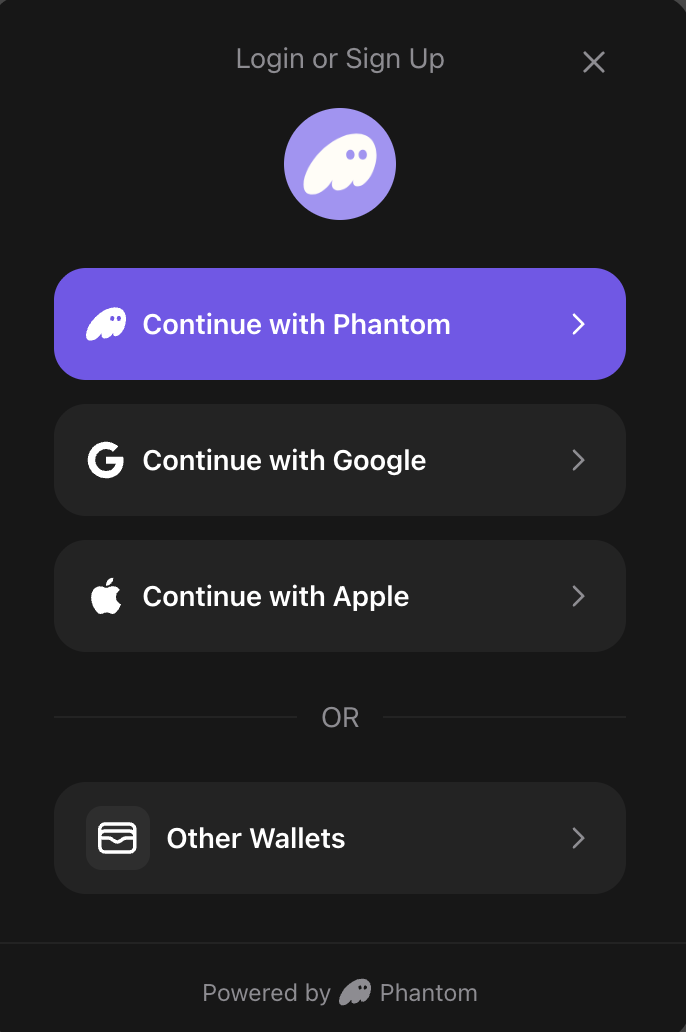
The SDK includes a built-in connection modal that provides a user-friendly interface for connecting to Phantom. Use the `useModal()` hook to control it:
```tsx theme={null}
import { PhantomProvider, useModal, darkTheme, usePhantom, AddressType } from "@phantom/react-sdk";
function App() {
return (
);
}
function ConnectButton() {
const { open } = useModal();
const { isConnected } = usePhantom();
if (isConnected) {
return
Connected!
;
}
return ;
}
```
Modal features:
* Multiple sign-in options: Google, Apple, browser extension
* Built-in error handling and loading states
* Works across devices and environments
* Handles the full connection flow and returns a ready-to-use wallet session
* Presented as a bottom sheet optimized for mobile interaction
## Using ConnectBox for auth callbacks
The `ConnectBox` component provides an inline, embedded connection experience that's perfect for auth callback pages. Unlike the modal, it renders directly in your page flow and automatically handles all OAuth callback states.
### Setting up an auth callback page
When using OAuth providers (Google, Apple), users are redirected to your callback URL after authentication. Use `ConnectBox` on this page to handle the callback flow:
```tsx theme={null}
// pages/auth/callback.tsx or app/auth/callback/page.tsx
import { PhantomProvider, ConnectBox, darkTheme } from "@phantom/react-sdk";
import { AddressType } from "@phantom/browser-sdk";
function AuthCallbackPage() {
return (
);
}
```
### ConnectBox props
| Property | Type | Default | Description |
| ------------- | ------------------ | --------- | -------------------------------------- |
| `maxWidth` | `string \| number` | `"350px"` | Maximum width of the box |
| `transparent` | `boolean` | `false` | Removes background, border, and shadow |
| `appIcon` | `string` | — | URL to your app icon |
| `appName` | `string` | — | Your app name |
### Usage examples
```tsx theme={null}
import { ConnectBox } from "@phantom/react-sdk";
// Default embedded box
// Custom width
// Transparent (blends with your page background)
// Override app icon and name for this instance
```
### ConnectBox vs modal
| Feature | ConnectBox | Modal |
| ---------------------- | ---------------------------------- | -------------------- |
| Rendering | Inline in page flow | Floating overlay |
| Close button | No | Yes |
| Auth callback handling | Automatic | Manual |
| Use case | Auth callback pages, embedded auth | On-demand connection |
| Background | Customizable/transparent | Overlay backdrop |
**Best practice**: Use `ConnectBox` on your OAuth callback page (`/auth/callback`) to automatically handle the authentication completion flow. The component shows loading states during token exchange and displays any errors clearly.
## Configuration options
Important notes about `redirectUrl`:
* Must be an existing page/route in your application.
* Must be whitelisted in your Phantom Portal app configuration.
* This is where users will be redirected after completing OAuth authentication.
* Required for the `google` and `apple` providers.
* Not required for the `injected` provider.
## Handling connection errors
When a connection fails, the `connect()` promise rejects with an error.
```tsx theme={null}
import { useConnect } from "@phantom/react-sdk";
function ConnectButton() {
const { connect, isConnecting, error } = useConnect();
const handleConnect = async () => {
try {
const { walletId, addresses } = await connect({ provider: "google" });
// Connection successful
console.log("Connected addresses:", addresses);
} catch (err) {
// Connection failed (user cancelled, network error, etc)
console.error("Failed to connect:", err);
}
};
return (
);
}
```
 ### Setting up an auth callback page
When using OAuth providers (Google, Apple), users are redirected to your callback URL after authentication. Use `ConnectBox` on this page to handle the callback flow:
```tsx theme={null}
// pages/auth/callback.tsx or app/auth/callback/page.tsx
import { PhantomProvider, ConnectBox, darkTheme } from "@phantom/react-sdk";
import { AddressType } from "@phantom/browser-sdk";
function AuthCallbackPage() {
return (
### Setting up an auth callback page
When using OAuth providers (Google, Apple), users are redirected to your callback URL after authentication. Use `ConnectBox` on this page to handle the callback flow:
```tsx theme={null}
// pages/auth/callback.tsx or app/auth/callback/page.tsx
import { PhantomProvider, ConnectBox, darkTheme } from "@phantom/react-sdk";
import { AddressType } from "@phantom/browser-sdk";
function AuthCallbackPage() {
return (