

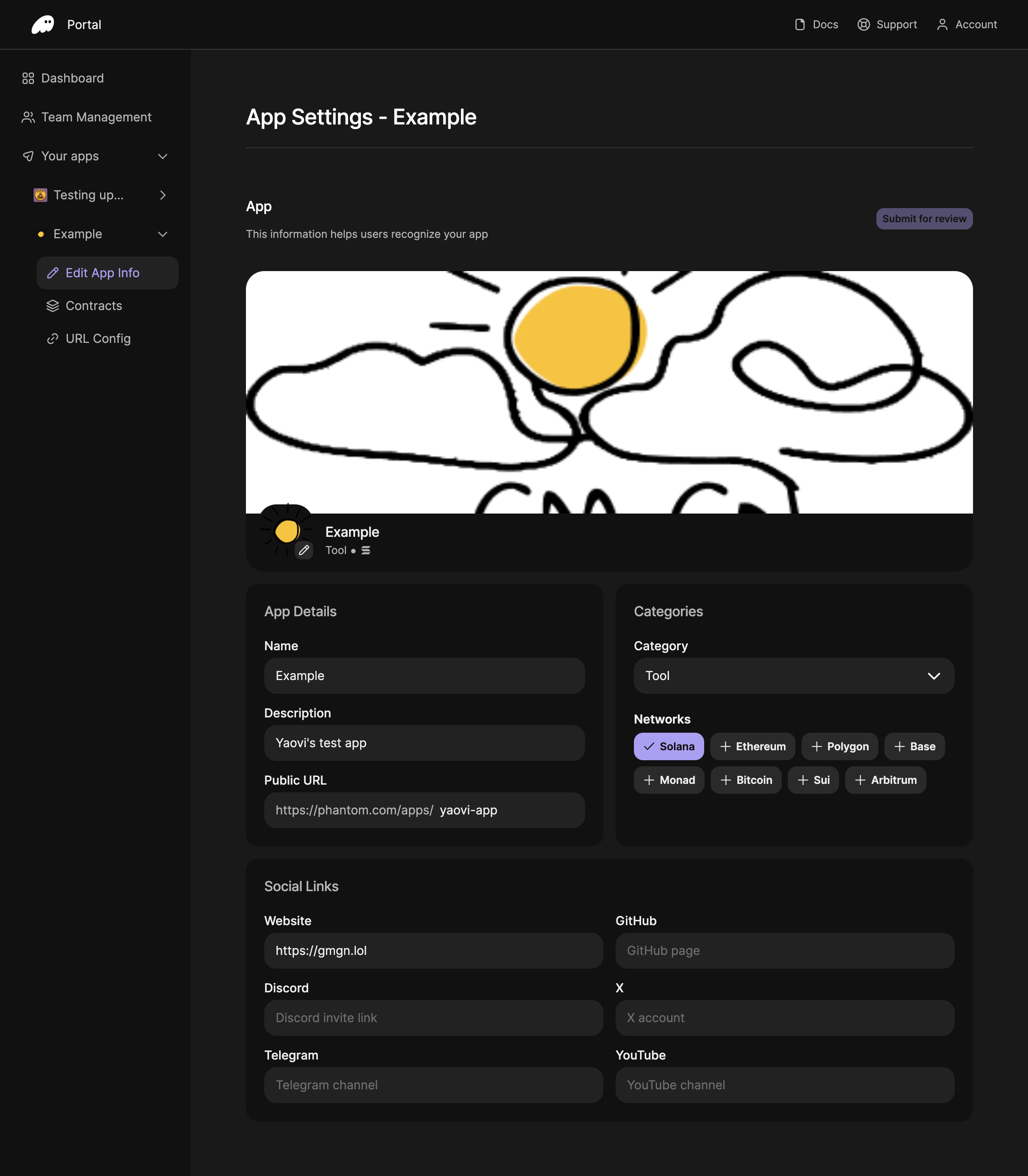
Add your app information
- In Phantom Portal, expand your app in the main navigation, then click Edit App Info.
-
App Details:
- App icon: Upload an icon as a PNG or JPG image, up to 250×250px and 1MB.
- Name: Enter your app’s official name (up to 50 characters).
- Description: Provide a brief tagline describing what your app does (up to 100 characters). The description field can accommodate longer text, but descriptions over 100 characters may not display well in the app.
- Public URL: Your app’s public URL within Phantom, must use HTTPS. You will need to verify your domain to use Phantom Connect in production and for your app to be visible in Phantom’s Explore tab.
- Cover image: A PNG or JPG image, recommended 1500×500px, up to 2MB.
-
Categories:
- Category: Select the category that best represents your app (AI, DeFi, NFT, gaming, and others).
- Networks: Select all blockchain networks your app supports.
- Social Links: Add links to your website, Discord, Telegram, GitHub, X (Twitter), and YouTube.
App access control
Your app’s access mode controls who can connect:- DISABLED: App is banned, no users can connect
- PRIVATE: Invited team members only (max 20) — this is the default mode
- PUBLIC: All users can connect — available after Phantom approval
Domain verification
Domain verification is required to use Phantom Connect in production, to allow users outside your team to connect, and for your app to appear in Phantom’s Explore tab and search results. It is not required during development:- In Phantom Portal, click Verify now.
- Add a DNS TXT record to your domain with the details on the screen.
- Copy the verification code from Phantom Portal.
- Select Verify Domain in Phantom Portal.
View the detailed verification guide →
Submit for review
After making any changes to your app information, a Submit changes for review button will appear above the cover image section. Click this button to submit your updates for review by the Phantom team.Next steps
Configure allowed origins
Previous: Configure allowed origins
Get App ID and integrate
Next: Get your App ID and start building